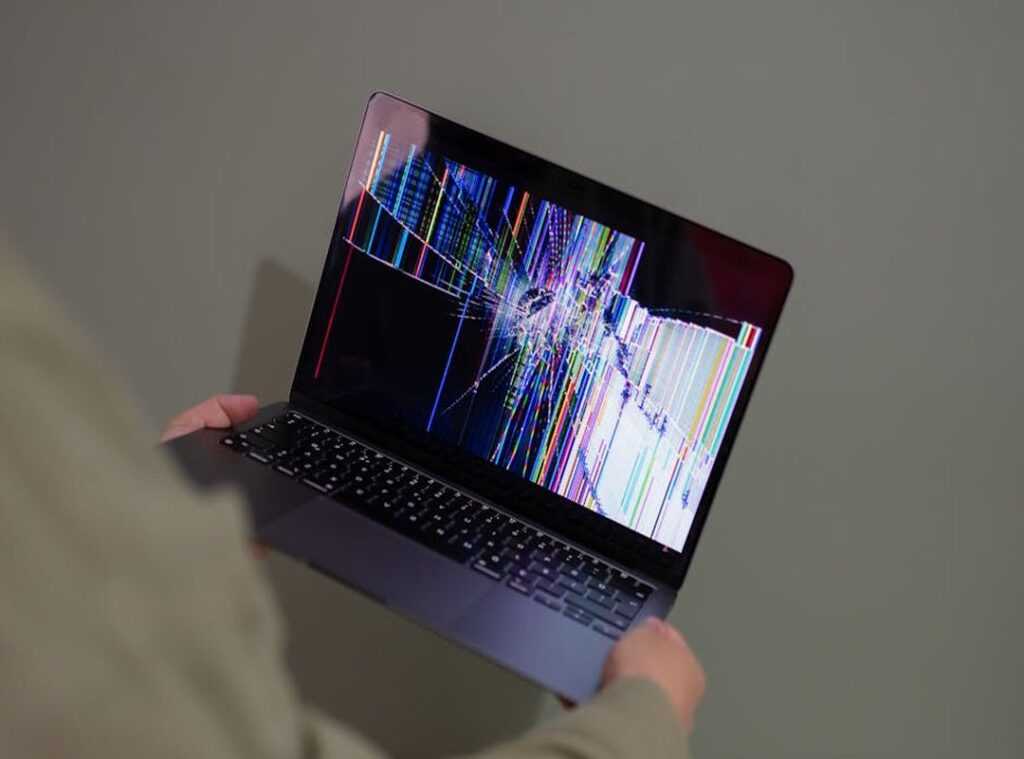
Ever felt like your laptop was once a speed demon but now slogs through your to-do list? I get it. We’ve all been there, staring at a screen while the spinning wheel of doom mocks us.
It’s not just annoying; it’s downright unproductive.
Why does this happen? Is it laptop hardware failures or just modern software being a resource hog? You’re not alone in asking these questions.
This guide cuts through the noise. You won’t find any fluff here. Just a clear path from diagnosing issues to real solutions.
With a solid grasp of core tech foundations, I’ve seen firsthand how software can drag a system down.
By the end, you’ll know exactly how to reclaim your machine’s speed and efficiency. Ready to dive in?
The Digital Declutter: Quick Software Fixes for an Instant Boost
Ever feel like your laptop’s running through mud? It happens. Before you panic about laptop hardware failures, give these quick fixes a shot.
They’re like first aid for your computer.
Step 1: Tidy Up Your Storage. A nearly full hard drive is like a backpack stuffed with rocks. It slows everything down. On Windows, run Disk Cleanup. It’s simple. Just search for it in the Start menu, select the drive, and let it do its thing. Mac users, you’ve got Storage Management. Open it from the Apple menu and start freeing up space. You’ll be amazed at how much faster things move.
Step 2: Clear Your Browser’s Cache. Browsers love to hoard data. It’s their thing. But too much cache can bog down web performance. For Chrome, head to Settings, then Privacy and Security. Clear browsing data. Choose a time range and hit clear. Safari users, go to Preferences, then Privacy. Click “Manage Website Data” and remove all. Instant speed boost.
Step 3: Uninstall Unused Programs. Bloatware is the worst. It wastes space and resources. Head to Control Panel on Windows or Applications on Mac. Look for programs you haven’t touched in ages. Uninstall them. Especially those pre-installed ones you never wanted. Your laptop will breathe easier.
Want more tech takeaways? Check out how to troubleshoot common smartphone issues. These quick fixes are like routine maintenance.
Anyone can do them in under 20 minutes. Give your laptop the boost it deserves.
Taming the Resource Hogs: Startup and Background Processes
Your laptop’s resources (think of them as its “working memory” and “brainpower”) are precious. If you’ve ever felt your computer dragging its feet, you’re not alone. So, what’s hogging all that power?
First, open your eyes to the culprits. Task Manager (for Windows) and Activity Monitor (for Mac) are your new best friends. These tools show you exactly who’s eating up your CPU and RAM.
Sort by CPU and Memory usage, and you’ll see which apps are the greediest. It’s like peeking under the hood of a car. You might be surprised by what you find.
Then there’s the startup slowdown. Many programs sneakily launch themselves when you turn on your laptop. Before you’ve even started working, they’re already draining your resources.
On Windows, head over to the Startup Apps menu. For Mac users, check out Login Items. Disable the ones you don’t need.
It’s like clearing out your closet (except much easier).
Modern apps are another story. They’re solid but hungry. AI tools, video editing software, or anything that syncs to the cloud can be major drains.
Close them when you’re not using them. Your laptop will thank you.
Now, why does this matter? If you ignore these resource hogs, you might face most common hardware problems. Overworking your system can lead to laptop hardware failures.
It’s not just about speed; it’s about keeping your machine healthy.
Pro tip: Regularly check for system updates. They often come with performance improvements. It’s like giving your laptop a spa day.
Taking control of what runs on your machine can feel empowering. You’ll notice smoother performance, fewer crashes, and maybe even a happier you. After all, who doesn’t want a laptop that runs like a dream?
The Physical Check-Up: Is Your Hardware the Real Bottleneck?
Let’s talk hardware. You know, the stuff inside your laptop that you can’t see. It’s easy to blame software for slowdowns, but sometimes the real culprit is right under your fingertips.

You ever notice your laptop getting warmer than a summer sidewalk? That’s a sign.
Overheating and Airflow: Dust bunnies love laptops. They sneak in and clog vents, causing overheating. Ever heard of “thermal throttling”? It’s when your CPU slows down to protect itself from heat damage. (Think of it as a digital siesta.) To prevent this, use compressed air to clean out those vents. And for heaven’s sake, put your laptop on a hard, flat surface. Sofas and beds are no-go zones.
Is it Time for a RAM Upgrade?
Feeling sluggish? Multitasking turning into a nightmare? That might be your RAM crying for help.
If your laptop freezes or slows down when you open more than a couple of tabs, you’re probably running low on memory. Check how much RAM you have installed. For today’s needs, 8GB is the bare minimum, but 16GB will make a world of difference.
Trust me.
Then there’s the hard drive. Remember when an HDD was the only option? (Feels like ancient history now.) Switching to an SSD can transform an old laptop into something that feels brand new. It’s the single most dramatic upgrade you can make.
Instant boot-ups, rapid file access… it’s like upgrading from a horse-drawn carriage to a race car.
Don’t forget the battery. A failing battery can be sneaky, causing your laptop to throttle performance to save power. Check its health regularly.
And if you’re troubleshooting printer issues or just love tech deep-dives, check out this guide fixing printer problems. It’s all connected, right?
Remember, sometimes laptop hardware failures are the real enemy. A little care and smart upgrades can keep that machine humming smoothly.
Advanced Diagnostics: Digging Deeper into System Issues
So, you’ve tried the usual fixes and your computer’s still acting up. Frustrating, right? Let’s go beyond the basics.
Malware and Virus Scans: If your system’s slowing down and you’re ready to rip your hair out, malware might be the culprit. Run a full system scan using something reputable like Windows Defender or Malwarebytes. It’s amazing how sneaky these things can be.
Now, let’s talk drivers. Outdated drivers are like trying to run modern apps on a flip phone. They’re the software that helps your OS communicate with hardware.
If they’re old, your system might be struggling. Run Windows Update or head to your manufacturer’s website (think Dell or HP) for the latest updates.
Pro tip: Regular updates can prevent headaches down the road.
And don’t overlook system file integrity. Windows users, here’s a simple check. Open Command Prompt and type sfc /scannow.
This checks for corrupted files and repairs them (a) health check for your OS.
Oh, and if none of this works, consider laptop hardware failures. Sometimes, it’s not just software. Your hardware might need a closer look.
Doesn’t diagnosing issues feel like detective work? But hey, when the basics fail, these steps can be your lifeline.
Boost Your Laptop’s Performance
You’ve got what you need now to tackle those annoying slowdowns. Remember, a sluggish laptop doesn’t have to be your reality. With this step-by-step guide, you’re ready to banish the clutter and pinpoint any laptop hardware failures lurking beneath the surface.
Bookmark this page. Dive into more tech takeaways and keep your digital life running smooth. Want more tips on avoiding tech frustrations?
Explore our guides to stay ahead and keep your devices in top shape.
 Ask Cairis Tornhaven how they got into expert insights and you'll probably get a longer answer than you expected. The short version: Cairis started doing it, got genuinely hooked, and at some point realized they had accumulated enough hard-won knowledge that it would be a waste not to share it. So they started writing.
What makes Cairis worth reading is that they skips the obvious stuff. Nobody needs another surface-level take on Expert Insights, Throw Signal Encryption Techniques, Device Troubleshooting Guides. What readers actually want is the nuance — the part that only becomes clear after you've made a few mistakes and figured out why. That's the territory Cairis operates in. The writing is direct, occasionally blunt, and always built around what's actually true rather than what sounds good in an article. They has little patience for filler, which means they's pieces tend to be denser with real information than the average post on the same subject.
Cairis doesn't write to impress anyone. They writes because they has things to say that they genuinely thinks people should hear. That motivation — basic as it sounds — produces something noticeably different from content written for clicks or word count. Readers pick up on it. The comments on Cairis's work tend to reflect that.
Ask Cairis Tornhaven how they got into expert insights and you'll probably get a longer answer than you expected. The short version: Cairis started doing it, got genuinely hooked, and at some point realized they had accumulated enough hard-won knowledge that it would be a waste not to share it. So they started writing.
What makes Cairis worth reading is that they skips the obvious stuff. Nobody needs another surface-level take on Expert Insights, Throw Signal Encryption Techniques, Device Troubleshooting Guides. What readers actually want is the nuance — the part that only becomes clear after you've made a few mistakes and figured out why. That's the territory Cairis operates in. The writing is direct, occasionally blunt, and always built around what's actually true rather than what sounds good in an article. They has little patience for filler, which means they's pieces tend to be denser with real information than the average post on the same subject.
Cairis doesn't write to impress anyone. They writes because they has things to say that they genuinely thinks people should hear. That motivation — basic as it sounds — produces something noticeably different from content written for clicks or word count. Readers pick up on it. The comments on Cairis's work tend to reflect that.