
We’ve all been there. You’re about to hit that deadline, and suddenly your printer decides it’s on strike. Nothing is more infuriating.
In this guide, I’m here to help you fix printer problems that drive you crazy. With our deep understanding of tech (yeah,) I’m talking software drivers and network protocols (we’ll) break down the chaos into simple steps. Why trust this?
Because we know what we’re doing. From the easiest fixes to the more complex ones, we’ll guide you step by step. This isn’t just about saving your sanity.
We’re here to save you time and money too. Ready to move from confusion to clarity? Let’s get your printer back on track without the headache.
The First-Response Checklist: Quick Fixes for Common Glitches
Let’s face it. Fixing a printer can feel like defusing a bomb. But it doesn’t have to be that way.
The first step? The Power Cycle method. You might think unplugging and replugging is enough, but wait.
Give it a full 60 seconds. Why? This allows internal components to fully reset, clearing out any temporary memory errors.
Now, on to the physical checks. Paper jams are the usual suspects. Look in the less obvious spots, like those tiny crevices where paper can hide like a ninja.
And don’t forget the low ink or toner levels. Check them accurately by using your printer’s software (it’s usually more reliable than your eyes). Properly loaded and aligned paper trays can also save you a headache.
Error messages can be cryptic, sure, but they’re your best clue. Write down the exact error code or message on the printer’s display. It’s like a secret language telling you what’s wrong.
Trust me, it’s worth doing.
Let’s not ignore the ever-frustrating print queue. On Windows, open the Control Panel, find Devices and Printers, and clear that queue. For macOS, head to System Preferences, select Printers & Scanners, and do the same.
It’s a common fix that solves more problems than you’d think.
And while you’re at it, if you’re facing more tech issues, you might want to check out Diagnosing Laptop Hardware Failures. It’s a handy resource for diving into other tech woes.
Now, go fix those printer problems like a pro. You’ve got this.
Solving Connection Conundrums: Is Your Printer Really Talking?
Ah, the infamous printer problems. Don’t you just love it when technology decides to play a game of hide and seek? The second most likely reason you’re having trouble is a communication breakdown.
Yep, your printer might not be saying “hi” to your computer.
to the solutions. For Wi-Fi printers, the first thing you should do is check that both your printer and computer are on the exact same Wi-Fi network. Sounds simple, right?
You’d be surprised how often this is the issue. If that doesn’t do the trick, try restarting your router.
You can also re-run the wireless setup wizard on the printer. It’s like hitting refresh on your browser, but for your printer.
Now, if you’re dealing with USB-connected printers, check both ends of that USB cable. Make sure they’re secure. If all else fails, try a different USB port on your computer.
Sometimes it’s not the printer; it’s the port. And hey, if you have another USB cable lying around, give it a shot.
For those using Bluetooth printers, check the Bluetooth connection status on both your devices. The classic un-pair and re-pair trick is often the hero of the day. It’s the tech equivalent of turning it off and on again.
So, there you have it. A few tips to help you fix printer problems and keep your tech talking. Who knew printers required so much attention?
But that’s the world we live in, right?
Driver Disasters & Software Snags: The Digital Side
Printer drivers are like translators for your devices. Your computer sends one language; the printer speaks another. The driver bridges that gap, converting digital babble into something your printer understands.
But when drivers get wonky, you’ll be pulling your hair out trying to fix printer problems.
So, how do you check if you’ve got the right driver? Easy. On Windows, pop open ‘Printers & Scanners’ in your settings.
For macOS, take a trip to ‘System Preferences.’ Look for your printer and see what’s listed. If it’s a stranger, you might have issues.
Updating? Don’t just rely on your OS to handle it. Head straight to the printer manufacturer’s website for the real deal.
Avoid third-party sites like the plague (they’re just asking for trouble). Third-party drivers can be a nightmare, often causing more harm than good.
Now, let’s talk about OS updates. Ever have a Windows or macOS update that seems to break everything? Sometimes, these updates clash with drivers.
The fix is often reinstalling the latest driver from the manufacturer’s site. Simple, but it works wonders.
And don’t forget about the software that comes with your printer. Make sure these are up-to-date too. It’s not just drivers that matter!
Keeping everything current helps dodge disaster. If you’re dealing with tech hassles beyond printers, check out common solutions smart tv bugs. You never know when you’ll need a fix for something else.
When It’s Physical: Tackling Hardware, Smudges, and Streaks
Ever tried to fix printer problems and felt like you’re wrestling with a stubborn mule? Let’s tackle this. If your print quality looks like a toddler’s first art project, it’s time to use the printer’s built-in print head cleaning and nozzle check functions.

Most folks overlook these, but they’re lifesavers. Seriously, don’t skip this step. Your prints will thank you.
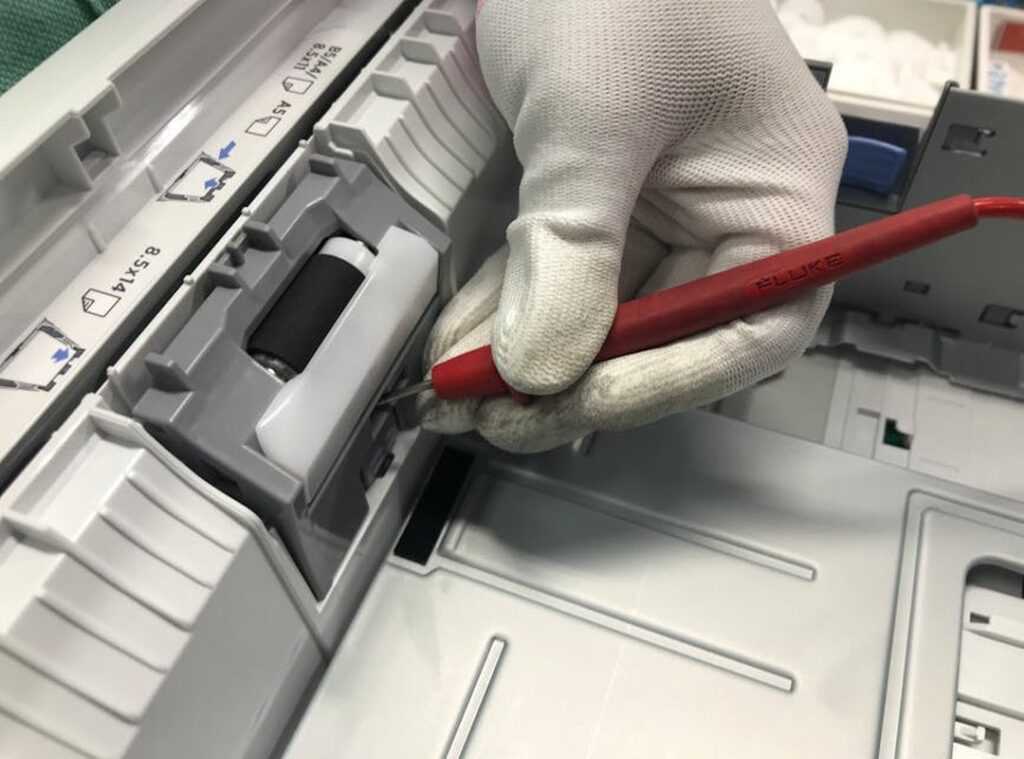
Now, if your printer’s munching on paper like it hasn’t eaten for days, it’s probably a paper feed issue. Dust and paper debris sneak into the rollers over time. Cleaning these rollers with a lint-free cloth and a bit of distilled water can work wonders.
Trust me, a little maintenance goes a long way.
What about those weird noises? If your printer sounds like it’s auditioning for a horror film, something’s off. Grinding or clicking noises often mean a part has come loose or there’s a nasty paper jam.
Power the thing down and take a cautious look inside. Safety first, folks.
Pro tip: Regularly inspect and clean your printer. It might sound boring, but it keeps everything running smoothly. Plus, you’ll spend less time yelling at your printer.
Advanced Steps and Proactive Prevention: Fix Printer Problems
Ever thought about a ‘Factory Reset’? It might be your last-ditch effort to solve stubborn printer issues. Remember, this will erase network settings.
Use with caution. Now, let’s talk preventive maintenance. You don’t want to fix printer problems every other week, right?
Run a nozzle check monthly. Clean rollers every six months. Simple steps save headaches.
But when is it time to call in the pros? If error codes keep haunting you or your printer is acting like a drama queen with suspected hardware issues (like a faulty power supply), it’s time. Especially if it’s a high-value office machine.
Let’s face it, sometimes DIY just doesn’t cut it.
Pro tip: Keep a checklist handy. It’s your new best friend in printer care.
Tame Your Printer Troubles
Remember that feeling of helplessness when your printer just wouldn’t cooperate? We’ve all been there. But fear not.
You’ve learned how to tackle these issues head-on. From those irritating connectivity problems to the mysterious paper jams, following logical steps can save your sanity. Knowing the ‘why’ behind each fix (like clearing memory) empowers you to handle future glitches.
Ready to take charge and never let tech frustrations slow you down again? Dive into more guides on our site. Fix printer problems today. Stay ahead of tech troubles with us.
Start exploring and regain your tech confidence now.
 Thomas Currynionez is the kind of writer who genuinely cannot publish something without checking it twice. Maybe three times. They came to ai and machine learning insights through years of hands-on work rather than theory, which means the things they writes about — AI and Machine Learning Insights, Tech Innovation Alerts, Expert Insights, among other areas — are things they has actually tested, questioned, and revised opinions on more than once.
That shows in the work. Thomas's pieces tend to go a level deeper than most. Not in a way that becomes unreadable, but in a way that makes you realize you'd been missing something important. They has a habit of finding the detail that everybody else glosses over and making it the center of the story — which sounds simple, but takes a rare combination of curiosity and patience to pull off consistently. The writing never feels rushed. It feels like someone who sat with the subject long enough to actually understand it.
Outside of specific topics, what Thomas cares about most is whether the reader walks away with something useful. Not impressed. Not entertained. Useful. That's a harder bar to clear than it sounds, and they clears it more often than not — which is why readers tend to remember Thomas's articles long after they've forgotten the headline.
Thomas Currynionez is the kind of writer who genuinely cannot publish something without checking it twice. Maybe three times. They came to ai and machine learning insights through years of hands-on work rather than theory, which means the things they writes about — AI and Machine Learning Insights, Tech Innovation Alerts, Expert Insights, among other areas — are things they has actually tested, questioned, and revised opinions on more than once.
That shows in the work. Thomas's pieces tend to go a level deeper than most. Not in a way that becomes unreadable, but in a way that makes you realize you'd been missing something important. They has a habit of finding the detail that everybody else glosses over and making it the center of the story — which sounds simple, but takes a rare combination of curiosity and patience to pull off consistently. The writing never feels rushed. It feels like someone who sat with the subject long enough to actually understand it.
Outside of specific topics, what Thomas cares about most is whether the reader walks away with something useful. Not impressed. Not entertained. Useful. That's a harder bar to clear than it sounds, and they clears it more often than not — which is why readers tend to remember Thomas's articles long after they've forgotten the headline.